If you’re able to log in, you can update your email address at any time by following these steps:
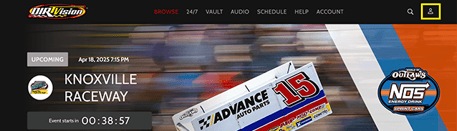
- Click on your profile icon (top right corner).
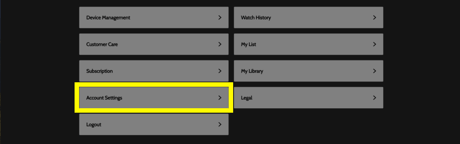
- Select Account Settings.
- Click the pencil icon next to your current email address.

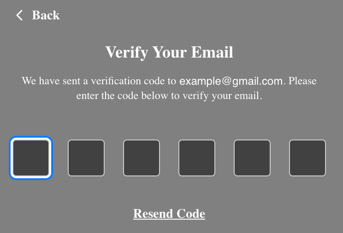
- Enter the verification code sent to your current email address.
- After entering the code, type in your new email address and click Verify Your New Email.
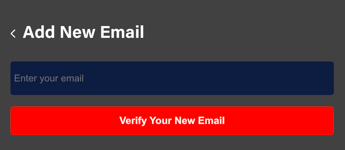
- You’ll then receive a second verification code at your new email address.
- Enter that code to complete the update.
Once successful, you’ll see a green confirmation banner at the top of the screen. If you do not see this banner, the email change was not completed—even if the new email appears in your account.
Please Note
- The new email address cannot already be associated with an existing DIRTVision account.
- You must use an email that is not currently tied to another account.
Don't Have Access to Your Current Email?
If you no longer have access to the email address associated with your DIRTVision account, please contact DIRTVision Customer Support and provide:
- Your current (old) email address.
- Your new desired email address.
Our Customer Support team will assist you with updating your account. Additional verification may be required for account security.